
Schema Graph Combiner
Merge separate JSON-LD blocks into one connected @graph: duplicates removed, stable @id values added, and conflicts flagged for review.
- Free
- No sign-up
- Runs in your browser
- Updated
Your JSON-LD blocks
Try an example:
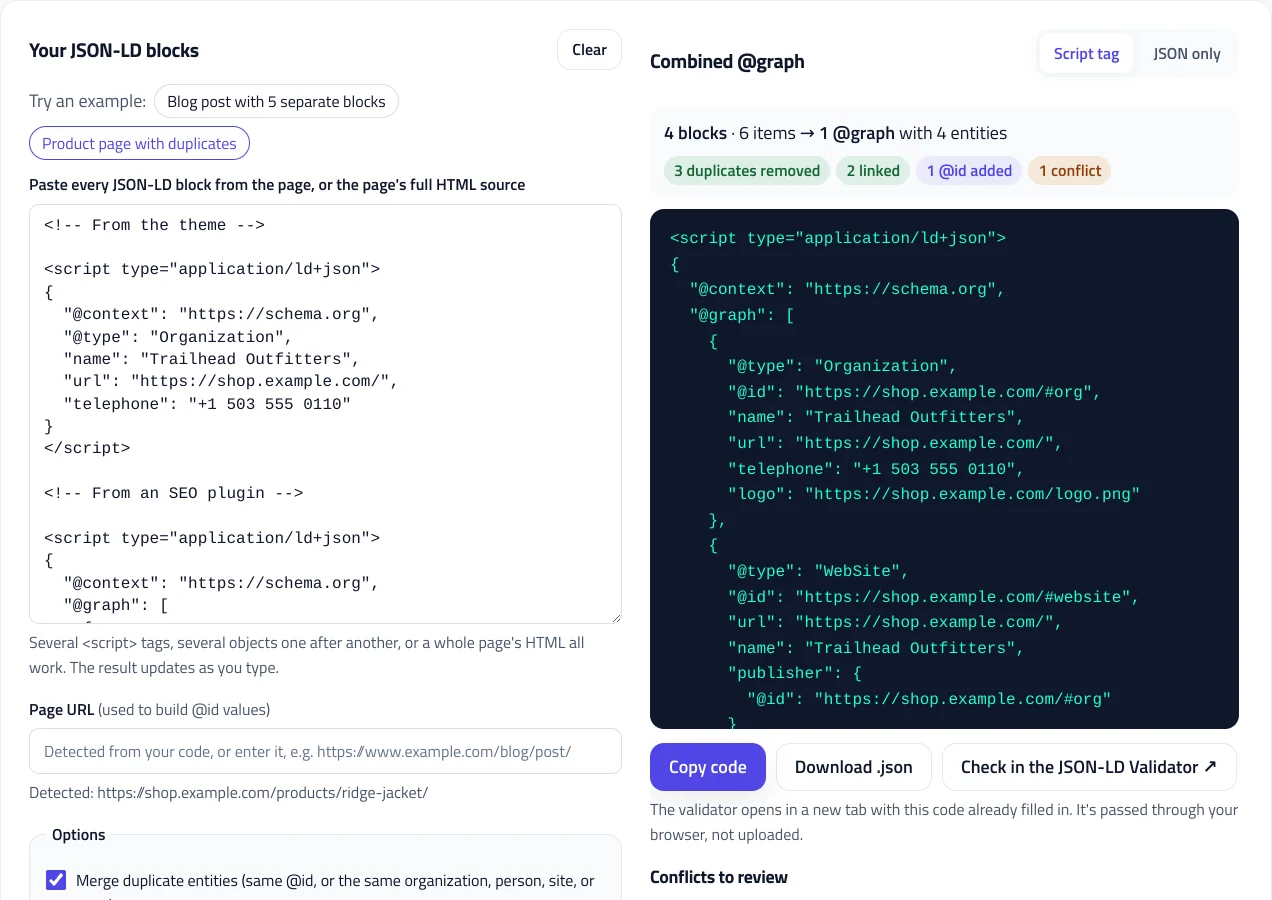
Several <script> tags, several objects one after another, or a whole page's HTML all work. The result updates as you type.
Your code is combined in your browser. It's never uploaded or stored.
Combined @graph
The validator opens in a new tab with this code already filled in. It's passed through your browser, not uploaded.
How to use the Schema Graph Combiner
-
Collect the page's structured data
Open the page source (Ctrl + U), copy everything, and paste it. The tool finds every
application/ld+jsonblock. You can also paste individual blocks. -
Check the page URL
The tool detects it from your code. If it can't, enter it so that @id values can be created.
-
Review the result
The summary shows how many duplicates were removed, links added, and conflicts found. Resolve any conflict at its source.
-
Check the combined code
Click Check in the JSON-LD Validator to test the result against schema.org and Google's requirements.
-
Replace the old blocks
Turn off the duplicate sources, such as your theme's built-in schema, and add the single combined script tag to the page.
Example: six separate blocks on a blog post
A blog post with six separate JSON-LD blocks: the organization, website, page, article, breadcrumbs, and author. The article repeats the organization as its publisher and names its author only as text.
<script type="application/ld+json">
{"@context": "https://schema.org", "@type": "Organization", "name": "Northwind Analytics", "url": "https://www.example.com/", "logo": "https://www.example.com/images/logo.png", "sameAs": ["https://www.linkedin.com/company/example"]}
</script>

<script type="application/ld+json">
{"@context": "https://schema.org", "@type": "WebSite", "name": "Northwind Analytics", "url": "https://www.example.com/"}
</script>

<script type="application/ld+json">
{"@context": "https://schema.org", "@type": "WebPage", "name": "How to forecast seasonal demand", "url": "https://www.example.com/blog/seasonal-demand/"}
</script>

<script type="application/ld+json">
{"@context": "https://schema.org", "@type": "BlogPosting", "headline": "How to forecast seasonal demand", "datePublished": "2026-09-14", "image": "https://www.example.com/images/seasonal-demand.jpg", "author": "Maya Chen", "publisher": {"@type": "Organization", "name": "Northwind Analytics", "logo": {"@type": "ImageObject", "url": "https://www.example.com/images/logo.png"}}}
</script>

<script type="application/ld+json">
{"@context": "https://schema.org", "@type": "BreadcrumbList", "itemListElement": [{"@type": "ListItem", "position": 1, "name": "Home", "item": "https://www.example.com/"}, {"@type": "ListItem", "position": 2, "name": "Blog", "item": "https://www.example.com/blog/"}, {"@type": "ListItem", "position": 3, "name": "How to forecast seasonal demand"}]}
</script>

<script type="application/ld+json">
{"@context": "https://schema.org", "@type": "Person", "name": "Maya Chen", "url": "https://www.example.com/about/maya-chen/", "jobTitle": "Head of Data Science"}
</script>{
"@context": "https://schema.org",
"@graph": [
{
"@type": "Organization",
"@id": "https://www.example.com/#organization",
"name": "Northwind Analytics",
"url": "https://www.example.com/",
"logo": "https://www.example.com/images/logo.png",
"sameAs": [
"https://www.linkedin.com/company/example"
]
},
{
"@type": "WebSite",
"@id": "https://www.example.com/#website",
"name": "Northwind Analytics",
"url": "https://www.example.com/",
"publisher": {
"@id": "https://www.example.com/#organization"
}
},
{
"@type": "WebPage",
"@id": "https://www.example.com/blog/seasonal-demand/#webpage",
"name": "How to forecast seasonal demand",
"url": "https://www.example.com/blog/seasonal-demand/",
"isPartOf": {
"@id": "https://www.example.com/#website"
},
"breadcrumb": {
"@id": "https://www.example.com/blog/seasonal-demand/#breadcrumb"
}
},
{
"@type": "BreadcrumbList",
"@id": "https://www.example.com/blog/seasonal-demand/#breadcrumb",
"itemListElement": [
{
"@type": "ListItem",
"position": 1,
"name": "Home",
"item": "https://www.example.com/"
},
{
"@type": "ListItem",
"position": 2,
"name": "Blog",
"item": "https://www.example.com/blog/"
},
{
"@type": "ListItem",
"position": 3,
"name": "How to forecast seasonal demand"
}
]
},
{
"@type": "BlogPosting",
"@id": "https://www.example.com/blog/seasonal-demand/#article",
"headline": "How to forecast seasonal demand",
"datePublished": "2026-09-14",
"image": "https://www.example.com/images/seasonal-demand.jpg",
"author": {
"@id": "https://www.example.com/#person-maya-chen"
},
"publisher": {
"@id": "https://www.example.com/#organization"
},
"mainEntityOfPage": {
"@id": "https://www.example.com/blog/seasonal-demand/#webpage"
}
},
{
"@type": "Person",
"@id": "https://www.example.com/#person-maya-chen",
"name": "Maya Chen",
"url": "https://www.example.com/about/maya-chen/",
"jobTitle": "Head of Data Science"
}
]
}The repeated publisher became a reference to #organization, the author name became a reference to the Person entity, and five links were added: publisher, isPartOf, breadcrumb, mainEntityOfPage, and author. Every entity now has an absolute @id.
This schema graph combiner takes every JSON-LD block on a page, whether it comes from your theme, your SEO plugin, or a store app, and merges them into one clean @graph. It removes duplicate entities, gives each one a stable @id, links related entities together, and shows you exactly what changed and where two sources disagree.
What is @graph in JSON-LD?
A JSON-LD @graph is a single block that holds several entities side by side, such as your Organization, WebSite, the WebPage, a BreadcrumbList, and the Article on it. Each entity gets an @id, a unique identifier, usually your URL plus a fragment like #organization. Entities then point to each other with those IDs instead of repeating their details:
"publisher": { "@id": "https://www.example.com/#organization" }
Search engines read structured data split across several script tags as well as one combined graph; both are valid JSON-LD. The difference is clarity. A connected graph states the relationships outright: this article is on this page, the page belongs to this website, the website is published by this organization, and this person wrote the article.
Why combine separate JSON-LD blocks?
Most sites don’t plan their schema; it accumulates. A theme adds Organization markup, an SEO plugin adds its own Organization and WebSite, a review app adds Product markup with the seller described again. The result is a page that describes the same organization three times, sometimes with three different phone numbers, and entities that aren’t connected to each other at all.
Combining them into one schema graph fixes three problems at once:
- Duplicates. One organization, one website, one page, each described once.
- Conflicts. When two sources disagree, you see it and choose the right value instead of letting search engines guess.
- Missing connections. Publisher, author, and page relationships are stated explicitly, which helps search engines and AI systems understand who is behind the content.
How the schema graph combiner works
Paste every JSON-LD block from a page, or the page’s whole HTML source, and the tool works through these steps:
- Reads every block. Several script tags, several objects one after another, existing
@grapharrays, and even minor syntax errors are handled. Broken blocks are reported and skipped. - Merges duplicates. Items with the same
@idare merged, and so are organizations, people, websites, pages, articles, and products that describe the same thing, matched by URL, or by name when one copy has no URL. - Assigns stable @id values. Site-wide entities get IDs on your homepage URL, such as
/#organizationand/#website; page-level entities get IDs on the page URL, such as#webpage,#breadcrumb, and#article. Relative IDs are made absolute. - Replaces nested copies. An organization repeated inside an article’s publisher or a product’s seller becomes a reference to the main Organization entity.
- Links related entities. WebSite gets its publisher, WebPage gets isPartOf and breadcrumb, articles get publisher and mainEntityOfPage, a single product or event becomes the page’s mainEntity, and an author written as a name is linked to the matching Person.
Each step can be turned off. The report lists every change, every conflict, and an entity map showing how everything connects.
Duplicates and conflicts
When the same entity appears twice with different values, the combiner keeps the first value and lists the conflict, showing both values side by side. Order matters, so paste the most trustworthy source first, usually your SEO plugin’s output. Lists such as sameAs are merged rather than treated as conflicts, and the same image written as text in one place and as an ImageObject in another counts as the same value.
Conflicts are worth fixing at the source, not just in the combined code. If your theme says one phone number and your plugin says another, update the one that’s wrong, or turn off one of the two outputs.
A good graph for common pages
Most pages need only a handful of entities. A typical schema graph looks like this:
- Every page: Organization (or LocalBusiness), WebSite with publisher pointing to the organization, and a WebPage with isPartOf pointing to the website.
- Pages below the homepage: a BreadcrumbList, referenced from the WebPage.
- Blog posts: an Article or BlogPosting with publisher, mainEntityOfPage, and an author that points to a Person entity.
- Product pages: a Product with offers, set as the WebPage’s mainEntity, with the seller pointing to your organization.
Keep the organization’s @id identical on every page. That consistency is what lets search engines recognize it as one entity across your whole site. The Organization Schema Generator creates that entity with the #organization ID this tool uses.
Adding the combined code to your site
Replace the separate blocks with the combined schema graph in a single script tag, ideally in the page’s <head>. On WordPress, that usually means turning off the duplicate sources first: disable your theme’s built-in schema if it has one, and either configure your SEO plugin to output everything or turn off the parts you’re replacing. Adding the combined graph on top of the old blocks would bring the duplicates back.
Before publishing, click Check in the JSON-LD Validator to open the result in the JSON-LD Validator, which checks it against schema.org and Google’s rich result requirements, then test the live page with Google’s Rich Results Test.
What the combiner can’t do
The tool works only with the code you give it. It can’t check that your markup matches what’s visible on the page, which Google requires, and it doesn’t know which of two conflicting values is true. Matching by name is a sensible default but not infallible, so review the merge list if two different organizations share a name. Everything runs in your browser, and your code isn’t uploaded.
Schema Graph Combiner FAQ
Is one schema graph better than several JSON-LD blocks?
Both are valid, and search engines read both. A combined @graph is easier to maintain and makes relationships explicit, such as who published an article and which website a page belongs to, while removing duplicate or conflicting entities.
What should the @id values look like?
Use absolute URLs with a fragment, such as https://www.example.com/#organization for site-wide entities and the page URL plus #webpage or #article for page-level ones. Keep the organization's @id identical on every page.
Which value is kept when two blocks disagree?
The first one. The tool lists every conflict with both values so you can check them, so paste your most reliable source first. Lists like sameAs are merged instead of treated as conflicts.
Can I combine schema from different plugins?
Yes. Paste the full page source and the tool reads every JSON-LD block, whatever produced it. To publish the result, turn off the duplicate sources first so the old blocks don't come back alongside the combined one.
Does combining schema improve rankings?
Not directly. It removes duplicate and conflicting information and makes relationships clear, which helps search engines and AI systems understand your content correctly.
Is my code uploaded?
No. The tool runs in your browser. When you open the result in the JSON-LD Validator, the code is passed through your browser's local storage and deleted as soon as the validator reads it.
Related tools
JSON-LD Validator
Validate JSON-LD against schema.org and Google's rich result rules, find exact syntax errors, and auto-fix common mistakes.
Organization Schema Generator
Create Organization and WebSite JSON-LD for your homepage, with logo checks, profile links, contact points, and validated business identifiers.
Local Business Schema Generator
Build valid LocalBusiness JSON-LD for any of 131 business types, with opening hours, geo coordinates, and instant checks against Google's rules.
Breadcrumb Schema Generator
Build BreadcrumbList JSON-LD from a URL or your page's HTML, with multiple trails, Google checks, and matching breadcrumb HTML.
Article Schema Generator
Create Article, BlogPosting, and NewsArticle JSON-LD with image checks, author best practices, and correct dates. Auto-fill it from your page.
Person Schema Generator
Create Person and ProfilePage JSON-LD for author, About, and team pages, with photo checks, clean sameAs links, and credentials. Auto-fill it from your page.