
Event Schema Generator
Create Event JSON-LD that follows Google's event guidelines, with the right time zone offset for every date and checks as you type.
- Free
- No sign-up
- Runs in your browser
- Updated
Export an .ics file from Google Calendar, Outlook, Eventbrite, or Meetup, or paste existing Event markup. The first event found is loaded into the form. Nothing is uploaded.
Your markup
Preview
Checks
How to use the Event Schema Generator
-
Describe the event
Enter the name, kind of event, and page URL, or import it from an .ics file or existing markup.
-
Set the date and time zone
Choose the dates, times, and the venue's time zone. The offset is calculated for the event's date.
-
Add the venue and tickets
Add the venue's full address, then each ticket type with its price and ticket page.
-
Fix the checks and copy
Fix anything flagged, then paste the script tag into the event's page.
Example: a free workshop in the UK
A free pottery workshop in Bath in March, before British Summer Time starts, so the offset is +00:00.
Name: Beginner Pottery Workshop
Kind of event: Class or workshop
Date: 14 March 2027, 10:00 to 12:30
Time zone: Europe/London
Venue: Riverside Arts Studio, 14 Mill Lane, Bath, BA1 0ZZ, GB
Tickets: free, booking page linked<script type="application/ld+json">
{
"@context": "https://schema.org",
"@type": "EducationEvent",
"name": "Beginner Pottery Workshop",
"startDate": "2027-03-14T10:00:00+00:00",
"endDate": "2027-03-14T12:30:00+00:00",
"eventStatus": "https://schema.org/EventScheduled",
"eventAttendanceMode": "https://schema.org/OfflineEventAttendanceMode",
"location": {
"@type": "Place",
"name": "Riverside Arts Studio",
"address": {
"@type": "PostalAddress",
"streetAddress": "14 Mill Lane",
"addressLocality": "Bath",
"postalCode": "BA1 0ZZ",
"addressCountry": "GB"
}
},
"offers": {
"@type": "Offer",
"price": 0,
"priceCurrency": "GBP",
"availability": "https://schema.org/InStock",
"url": "https://www.riversidearts.example/workshops/pottery/"
}
}
</script>Free events use a price of 0. For the same workshop on 4 April, after the clocks change, the generator would write +01:00.
This event schema generator creates Event JSON-LD for concerts, festivals, classes, conferences, and other events, following Google’s current event structured data guidelines. It works out the right time zone offset for your event’s date, including daylight saving time, handles cancelled, postponed, and rescheduled events, and checks every field as you type. You can also import an event from a calendar file and download an “add to calendar” file for your page. Everything runs in your browser.
How to create event schema
- Enter the event’s name, kind, and page URL, or click Import an event to load one from an .ics calendar file or existing markup.
- Set the date, time, and time zone. The offset is calculated for the event’s date, so daylight saving time is always right.
- Add the venue’s full address, tickets, images, and organizer.
- Fix anything in the checks, then copy the script tag into the event page.
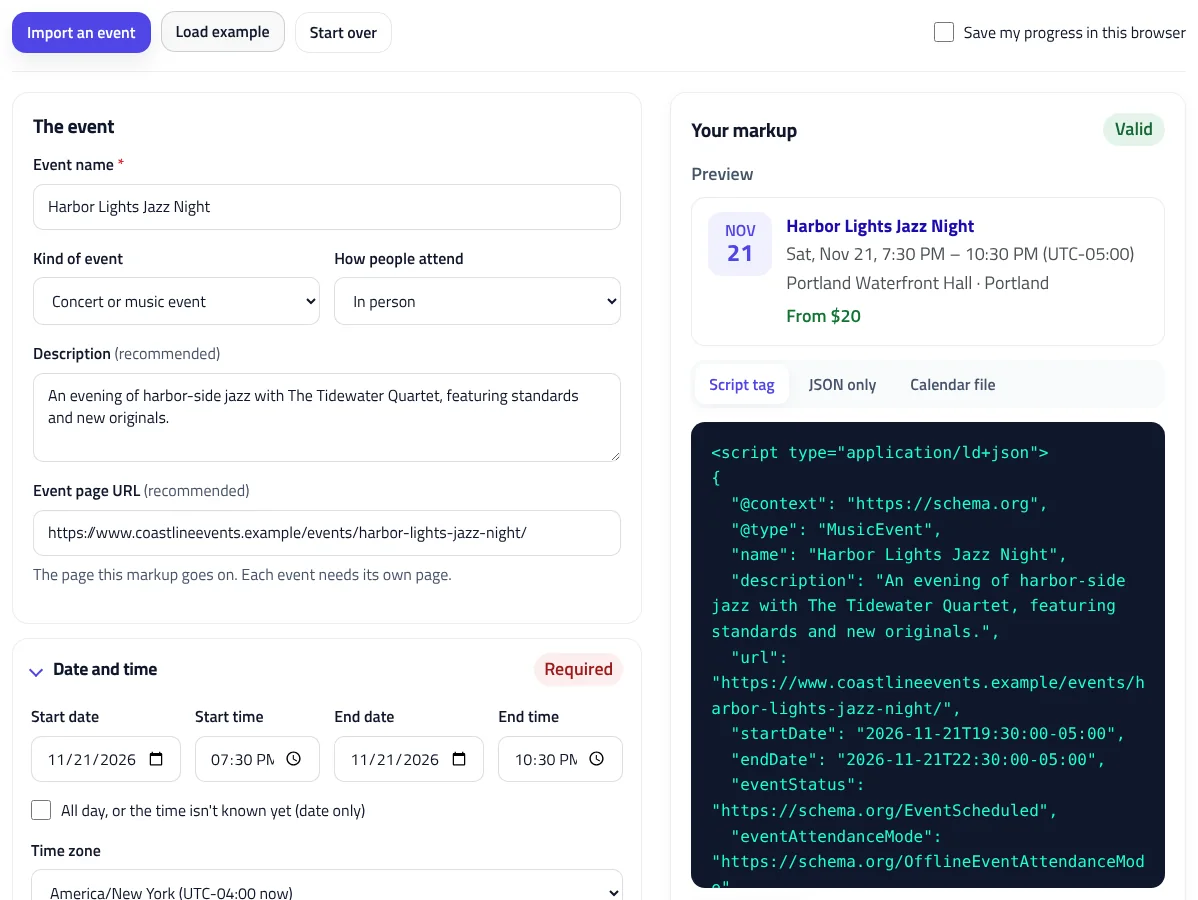
What Google shows for events
With valid Event markup, an event can appear in Google’s event results in Search and in other Google products such as Maps, with its date, venue, and a link to tickets. Google offers this in selected countries and languages, including the US, UK, Canada, Australia, and India. To be eligible, an event must take place at a physical location, be open to the public, and have its own page: Google doesn’t support pages that list many events, so mark up each event on its own page.
Event schema example
A shortened version of the example from the event schema generator, with the required name, startDate, and location, plus the most useful recommended properties:
{
  "@context": "https://schema.org",
  "@type": "MusicEvent",
  "name": "Harbor Lights Jazz Night",
  "startDate": "2026-11-21T19:30:00-05:00",
  "endDate": "2026-11-21T22:30:00-05:00",
  "eventStatus": "https://schema.org/EventScheduled",
  "location": {
    "@type": "Place",
    "name": "Portland Waterfront Hall",
    "address": {
      "@type": "PostalAddress",
      "streetAddress": "120 Commercial Street",
      "addressLocality": "Portland",
      "addressRegion": "ME",
      "postalCode": "04101",
      "addressCountry": "US"
    }
  },
  "offers": {
    "@type": "Offer",
    "price": 35,
    "priceCurrency": "USD",
    "availability": "https://schema.org/InStock",
    "url": "https://www.example.com/tickets/jazz-night/"
  }
}
Required and recommended properties
| Property | Status | Notes |
|---|---|---|
name | Required | The event’s full title, not the venue’s name, without promotional text. |
startDate | Required | ISO 8601, ideally with a UTC offset. Use a date on its own if the time isn’t known. |
location | Required | A Place with the venue’s precise address, not just a city. |
endDate | Recommended | Important for events over several days. |
eventStatus | Recommended | Scheduled, cancelled, postponed, or rescheduled. |
offers | Recommended | One offer per ticket type, with the price, currency, and ticket page. |
image | Recommended | At least 1920 pixels wide is best, in 16:9, 4:3, and 1:1. |
organizer, performer | Recommended | Names, plus the organizer’s website. |
description | Recommended | A short summary, without repeating the date or venue. |
Time zones and daylight saving time
A fixed offset, or none at all, is easy to get wrong across a daylight saving change: a concert in New York in November is at UTC-05:00, but tickets that go on sale in September are at UTC-04:00. Pick the venue’s time zone once, and the generator works out the correct offset for each date, including the ticket sale date and the original date of a rescheduled event. If you leave the time zone out, Google uses the venue’s, and the generator tells you so.
Don’t use midnight as a placeholder for an unknown time. Tick All day instead, and the generator writes the date on its own, which Google accepts.
Cancelled, postponed, and rescheduled events
When plans change, update the markup instead of removing it, so Google can match the change to the original event:
| Situation | What to do |
|---|---|
| Cancelled | Set the status to Cancelled. Keep the original date and venue. |
| Postponed, no new date yet | Set the status to Postponed. Keep the original start date until the new one is known. |
| Rescheduled | Set the status to Rescheduled, change the start and end dates to the new ones, and add the original start date as previousStartDate. |
The generator shows these steps when you change the status, and the checks catch common mistakes, such as a rescheduled event whose new date is the same as the original one.
Online and hybrid events
Google’s event results now only include events that happen at a physical location. You can still describe an online-only event with a VirtualLocation and mark it as an online event, and the generator writes valid markup for it, but it warns you that it won’t appear as an event result. Hybrid events, with both a venue and an online stream, are written with both locations.
Tickets and prices
Add one ticket type for each price, such as general admission and student tickets. Google asks for the lowest available price, including fees, and the currency as a three-letter code. Use 0 for free events, or click It’s free. The ticket URL should be a page where people can buy tickets for this specific event, linked from the event page. If tickets aren’t on sale yet, add the date they go on sale, which the generator writes as validFrom with the right offset.
Import from your calendar, and add-to-calendar files
In the event schema generator, click Import an event and paste or upload an .ics file exported from Google Calendar, Outlook, Apple Calendar, or most ticketing platforms. The generator reads the title, description, times and time zone, venue, organizer, and status, and splits the address into fields for you to check. It also reads existing Event JSON-LD, so you can check and fix markup from a plugin.
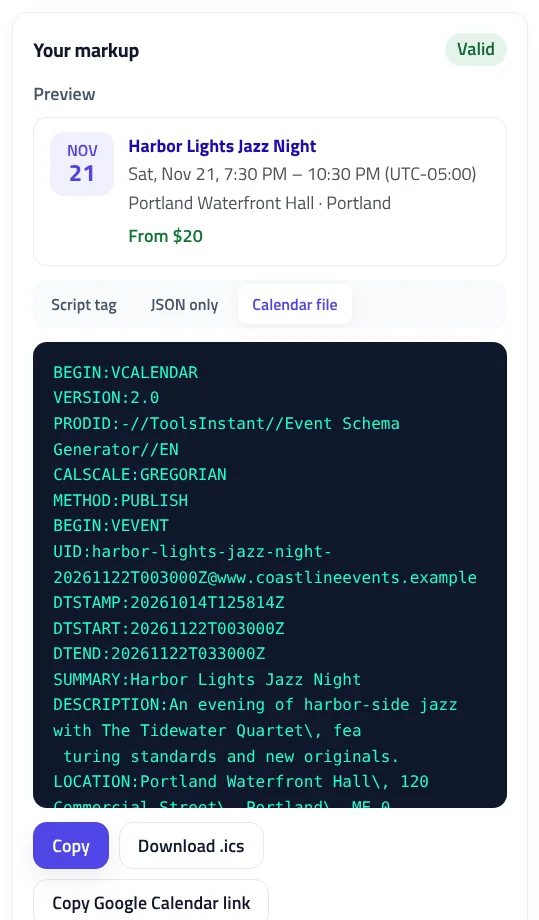
The Calendar file tab works the other way: it creates an .ics file you can link to as “Add to calendar”, and a Google Calendar link, both with the event’s exact time.
Event structured data for multi-day events and series
A festival or conference that runs over several days with one ticket is a single event: give it both a start date and an end date. When a show runs on several dates with separate tickets, such as a play’s weekly performances, each performance is its own event with its own start date. Google asks for a separate page for each event, so use the event schema generator once per performance page, changing the date, and keep the name, venue, and other details the same. If the event happens in several places at once, mark up each location as a separate event.
What not to mark up
- Things that aren’t events, such as coupons, sales, opening hours, and travel packages. The checks flag names that look like these.
- Pages that list several events. Mark up each event on its own page instead.
- Events that need an invitation or membership before people can buy tickets or attend.
- Events for children held inside a school.
Event schema in WordPress
Events plugins such as The Events Calendar add Event markup automatically. Check the page source before adding your own: two sets of markup for the same event can conflict. If your plugin’s markup has problems, paste the page’s HTML into Import an event to see what’s missing, then fix it in the plugin’s settings or replace it with this generator’s code.
Test your event markup
Check the code in the JSON-LD Validator, which the button on the tool opens with your code. Google’s Rich Results Test shows whether the page is eligible for event results, and the Events report in Search Console lists problems across your site. To combine your event with Organization or breadcrumb markup on the same page, use the Schema @graph Combiner.
Event Schema Generator FAQ
What does Event schema need?
Google requires the event's name, its start date, and its location with a full address. The end date, status, tickets, images, organizer, and performers are recommended.
Can online events show in Google's event results?
No. Google's event results only include events that happen at a physical location. Hybrid events with a venue can still qualify.
How do I mark up a cancelled event?
Set eventStatus to EventCancelled and keep the original date, venue, and page. Don't delete the markup.
How do I mark up a rescheduled event?
Set eventStatus to EventRescheduled, change startDate to the new date, and add the original date as previousStartDate.
Should I include a time zone?
Yes, when you can. Use the venue's UTC offset for that date. Without one, Google uses the venue's time zone.
Can one page mark up several events?
Google's event results only support pages about a single event. Give each event its own page and markup.
Related tools
JSON-LD Validator
Validate JSON-LD against schema.org and Google's rich result rules, find exact syntax errors, and auto-fix common mistakes.
Schema @graph Combiner
Merge separate JSON-LD blocks into one connected @graph: duplicates removed, stable @id values added, and conflicts flagged for review.
Local Business Schema Generator
Build valid LocalBusiness JSON-LD for any of 131 business types, with opening hours, geo coordinates, and instant checks against Google's rules.
Organization Schema Generator
Create Organization and WebSite JSON-LD for your homepage, with logo checks, profile links, contact points, and validated business identifiers.
Review Schema Generator
Create Review and AggregateRating JSON-LD for the item types Google supports, checked against its review snippet guidelines as you type.
Article Schema Generator
Create Article, BlogPosting, and NewsArticle JSON-LD with image checks, author best practices, and correct dates. Auto-fill it from your page.