
Article Schema Generator
Create Article, BlogPosting, and NewsArticle JSON-LD with image checks, author best practices, and correct dates. Auto-fill it from your page.
- Free
- No sign-up
- Runs in your browser
- Updated
The tool reads the title, description, canonical URL, images, dates, and authors from the page's meta tags and any existing JSON-LD. Nothing is uploaded.
Your JSON-LD
How to use the Article Schema Generator
-
Auto-fill from your page
Click Auto-fill from page HTML, paste the article's page source (Ctrl + U), and the form fills itself from your meta tags and existing JSON-LD. Or type the details in.
-
Check the images
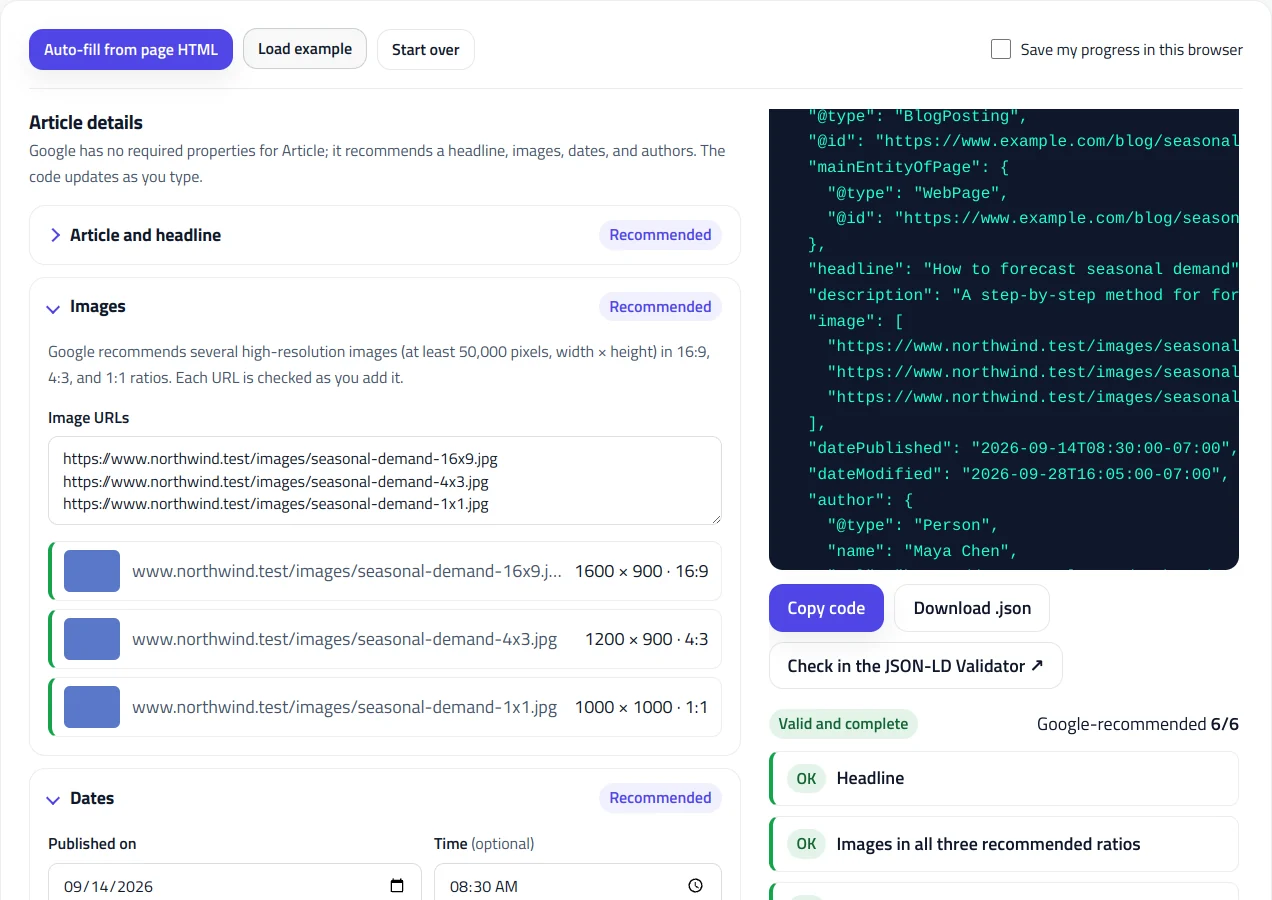
Add the featured image cropped to 16:9, 4:3, and 1:1. Each URL is loaded to check its size and ratio.
-
Set the dates
Enter the publication and last updated dates, with times if you have them. Your time zone is selected automatically.
-
Add each author
Enter each author separately with their profile page URL. The checks flag names Google would misread, such as "By Maya Chen" or two people in one name.
-
Copy and test the code
Copy the script tag into the article's page, then click Check in the JSON-LD Validator to test it.
Example: BlogPosting schema for a blog post
A blog post with three image crops, a publication and update time in Pacific Daylight Time, one author with a profile page, and the publisher referenced by @id. This is the JSON-LD the article schema generator creates.
Type:          Blog post (BlogPosting)
Headline:      How to forecast seasonal demand
Description:   A step-by-step method for forecasting seasonal demand
               with two years of sales data.
URL:           https://www.example.com/blog/seasonal-demand/
Images:        seasonal-demand-16x9.jpg, -4x3.jpg, -1x1.jpg
Published:     14 September 2026, 08:30 (UTC-07:00)
Updated:       28 September 2026, 16:05 (UTC-07:00)
Author:        Maya Chen, Head of Data Science
               Profile: https://www.example.com/authors/maya-chen/
Publisher:     Reference to the site's Organization (#organization)
Section:       Forecasting
Language:      en-US
Word count: 1850{
"@context": "https://schema.org",
"@type": "BlogPosting",
"@id": "https://www.example.com/blog/seasonal-demand/#article",
"mainEntityOfPage": {
"@type": "WebPage",
"@id": "https://www.example.com/blog/seasonal-demand/"
},
"headline": "How to forecast seasonal demand",
"description": "A step-by-step method for forecasting seasonal demand with two years of sales data.",
"image": [
"https://www.example.com/images/seasonal-demand-16x9.jpg",
"https://www.example.com/images/seasonal-demand-4x3.jpg",
"https://www.example.com/images/seasonal-demand-1x1.jpg"
],
"datePublished": "2026-09-14T08:30:00-07:00",
"dateModified": "2026-09-28T16:05:00-07:00",
"author": {
"@type": "Person",
"name": "Maya Chen",
"url": "https://www.example.com/authors/maya-chen/",
"jobTitle": "Head of Data Science",
"sameAs": "https://www.linkedin.com/in/example"
},
"publisher": {
"@id": "https://www.example.com/#organization"
},
"articleSection": "Forecasting",
"wordCount": 1850,
"inLanguage": "en-US"
}The article gets its own @id and a mainEntityOfPage pointing to the page. The publisher is a reference to #organization, so the organization's details live in your Organization schema. Dates include the time zone offset.
This article schema generator builds Article, BlogPosting, and NewsArticle JSON-LD that follows Google’s Article documentation and its author markup best practices. Paste your page’s HTML to fill in the headline, dates, images, and authors automatically, and the tool checks every image’s size and ratio, catches author names Google would misread, and writes dates with the correct time zone.
What is Article schema?
Article schema is structured data that tells search engines what an article is: its headline, images, publication and update dates, authors, and publisher. Google uses it to show better title text, images, and dates for articles in Search and other Google surfaces, such as Google News, and to understand who wrote the content.
There are no required properties for Article. Google recommends five: headline, image, datePublished, dateModified, and author, with the author’s name and URL. The generator shows how many of the six recommended values you’ve covered, counting the author URL separately.
Article, BlogPosting, or NewsArticle?
All three work for Google’s article features, so choose the type that describes the content honestly:
- BlogPosting for blog posts, the most common choice for business and personal blogs.
- NewsArticle for news reporting, plus its subtypes for analysis, opinion, reviews, background, and reportage.
- Article for anything else, with TechArticle for technical guides, ScholarlyArticle for academic work, and Report for reports.
Images: size and ratios
Google recommends several high-resolution images of at least 50,000 pixels (width multiplied by height), in three aspect ratios: 16:9, 4:3, and 1:1. Providing all three lets Google pick the best crop for each placement, such as a wide image in Discover and a square thumbnail elsewhere.
When you add an image URL, the generator loads it, shows its dimensions, detects its ratio, and flags images below the minimum. A practical setup is the same featured image cropped three ways, for example 1200 × 675, 1200 × 900, and 1200 × 1200. The image URLs must be crawlable, so make sure robots.txt doesn’t block your uploads folder.
Author markup best practices
Google has specific guidelines for authors, and they’re where most article schema goes wrong. The generator checks each of these:
- One author per entry. List several authors separately rather than “Maya Chen and Tom Lee” in one name.
- Only the name in author.name. No “By”, “Posted by”, job titles, or the publisher’s name.
- The right type. Use Person for people and Organization when content is credited to the organization itself.
- A profile URL. Link to the author’s page on your site, or another page that identifies them. If it’s a profile page on your site, mark that page up with ProfilePage structured data.
A job title belongs in its own jobTitle field and a social profile in sameAs, both of which the generator supports. Clear author information also supports the experience and expertise signals Google looks for in helpful content.
Dates and time zones
Use datePublished for the first publication date and dateModified for the last meaningful update. Both use ISO 8601, and including a time with a time zone, such as 2026-09-14T08:30:00-07:00, lets Google show the right date to readers everywhere. The generator builds that format for you, defaults to your time zone, and flags an updated date that comes before the published one.
Only change dateModified when the content really changes. Updating it for trivial edits to look fresh doesn’t help, and the dates in your markup should match the dates visible on the page.
Publisher and @id
By default the generator references your Organization by @id (your website URL plus #organization), so the publisher’s details live in one place. Create that entity once with the Organization Schema Generator and add it to your homepage. The article also gets its own @id and a mainEntityOfPage that points to the page, so it fits cleanly into a larger graph; the Schema @graph Combiner can merge it with the rest of the page’s structured data.
Paywalled and subscription content
If part of an article is hidden behind a paywall or registration wall but shown to Googlebot, mark it up so Google doesn’t mistake it for cloaking. Tick the paywall option and enter the CSS selector of the hidden section. The generator adds "isAccessibleForFree": false and a hasPart element with your selector, following Google’s paywalled content guidelines.
Auto-fill from your page
Instead of typing everything, click Auto-fill from page HTML and paste your article’s page source. The tool reads existing Article JSON-LD if there is any, then fills the gaps from the H1, meta description, canonical URL, Open Graph images, published and modified time tags, author meta tags and author links, the page’s language, and an estimated word count. Relative URLs are made absolute. Everything is read in your browser and nothing is uploaded.
Common article schema mistakes
- A headline that doesn’t match the page. Use the title readers actually see.
- One small image. A single thumbnail below 50,000 pixels gives Google little to work with.
- Author names as plain text, or several authors and job titles squeezed into one name.
- Dates without a time zone, or an updated date earlier than the publication date.
- Duplicate Article markup from a theme and an SEO plugin on the same page, often with different headlines or dates.
Adding and testing the markup
Paste the script tag into the article’s page, usually through your theme or SEO plugin. If your plugin already outputs Article or BlogPosting schema, keep only one version so the two don’t conflict. Then use Check in the JSON-LD Validator to test the code in the JSON-LD Validator, and confirm the live page with Google’s Rich Results Test.
Article Schema Generator FAQ
Which properties does Google need for Article schema?
None are strictly required. Google recommends headline, image, datePublished, dateModified, and author with author.name and author.url. Adding all of them gives Google the most accurate information to show.
Should I use Article, BlogPosting, or NewsArticle?
All three work with Google's article features. Use BlogPosting for blog posts, NewsArticle for news reporting, and Article for other content such as guides or reports.
What size should article images be?
Google recommends high-resolution images of at least 50,000 pixels (width × height), ideally the same image in 16:9, 4:3, and 1:1 ratios, such as 1200 × 675, 1200 × 900, and 1200 × 1200.
How do I mark up several authors?
Add each author as a separate Person with their own name and profile URL. Don't combine names in one author field, and keep job titles and words like "By" out of the name.
Is there a character limit for the headline?
Google's current Article documentation doesn't set one. Use the same headline readers see on the page; very long headlines can still be shortened in search results.
Does Article schema help rankings?
Not directly. It helps Google understand your article and show accurate titles, images, dates, and authors, which supports how your content appears in Search.
Related tools
JSON-LD Validator
Validate JSON-LD against schema.org and Google's rich result rules, find exact syntax errors, and auto-fix common mistakes.
Organization Schema Generator
Create Organization and WebSite JSON-LD for your homepage, with logo checks, profile links, contact points, and validated business identifiers.
Person Schema Generator
Create Person and ProfilePage JSON-LD for author, About, and team pages, with photo checks, clean sameAs links, and credentials. Auto-fill it from your page.
Breadcrumb Schema Generator
Build BreadcrumbList JSON-LD from a URL or your page's HTML, with multiple trails, Google checks, and matching breadcrumb HTML.
Schema @graph Combiner
Merge separate JSON-LD blocks into one connected @graph: duplicates removed, stable @id values added, and conflicts flagged for review.
FAQ Schema Generator
Turn questions and answers into valid FAQPage JSON-LD.